How to Build a Fully Functional Website Without Advanced Coding Knowledge for Beginners (2026)
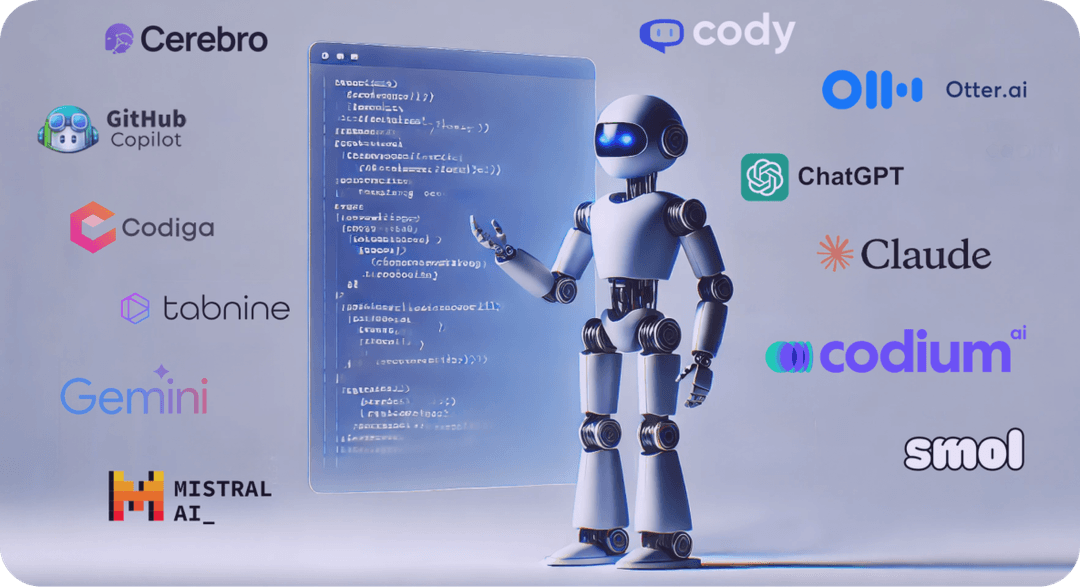
Building a Website in 2026: Complete No-Code Guide for Beginners
Building a website no longer requires coding skills. In 2026, AI-powered and no-code tools allow beginners to create professional, fully functional websites from idea to live launch.
This comprehensive guide walks you step by step, explaining which tools to use, how to get them, and what to do at each stage. Every step includes clear instructions and expected outputs, so you'll never feel lost.
Table of Contents
- Step 1: Clearly Decide What You Want to Build
- Step 2: Brainstorm Your Website Using ChatGPT
- Step 3: Build the Website Using Lovable
- Step 4: Add Pages and Content Using Prompts
- Step 5: Add Advanced Functionality
- Step 6: Use AI Inside Code Editors
- Step 7: Deploy Your Website for Free Using Vercel
- Step 8: Buy and Connect a Custom Domain
- SEO Optimization Tips
- Tools Summary
- Common Questions and Troubleshooting
Step 1: Clearly Decide What You Want to Build
Before using any tool, you must be clear about what you want to build. This clarity will save you time and help AI tools work more effectively.
What to Ask Yourself
- Is it a personal website?
- A business website?
- A blog?
- A portfolio?
- An e-commerce store?
Write Down Your Answers
Create a simple document with:
- Website name: What will you call your site?
- Purpose: What is the main goal? (Showcase work, sell products, share thoughts, etc.)
- Target audience: Who will visit your website?
- Pages needed: List all pages (Home, About, Contact, Blog, Services, etc.)
- Key features: What functionality do you need? (Contact form, image gallery, blog posts, etc.)
Expected Output
By the end of this step, you should have:
- A clear document describing your website idea
- A list of pages you want
- A basic understanding of your website's purpose
Why this matters: Having clarity at this stage makes AI tools work faster and better. You'll know exactly what to ask for in the next steps.
Step 2: Brainstorm Your Website Using ChatGPT
Tool: ChatGPT
Visit: https://chat.openai.com
ChatGPT will help you refine your idea and create a detailed plan that you can use with website builders.
What to Do
- Sign up or log in to ChatGPT (free account works fine)
- Start a new conversation
- Use this prompt (replace with your details):
I am a beginner and want to build a website. My website is called [Your Website Name] and its purpose is [Your Purpose]. I need help planning the website structure, content ideas, features, and layout. Please provide:

- A clear website structure with all pages
- Content ideas for each page
- Suggested features and functionality
- Layout recommendations
- A detailed website description I can use with website builders
What ChatGPT Will Provide
ChatGPT will help you:
- Define your website structure
- Generate content ideas for each page
- Suggest features and functionality
- Recommend layouts and design approaches
- Write a clear website description
Expected Output
After this step, you should have:
- A detailed website structure document
- Content ideas for each page
- A list of recommended features
- A clear website description (save this for the next step)
Important Next Step
After brainstorming, ask ChatGPT to generate a prompt specifically for Lovable. Say:
Please create a detailed prompt I can use with Lovable.dev to build this website. Include all the structure, features, and design requirements.
Save this Lovable prompt - you'll use it in Step 3.
Step 3: Build the Website Using Lovable (AI Website Builder)
Tool: Lovable
Visit: https://lovable.dev
Lovable is an AI-powered website builder that creates real, functional websites from your prompts.
How to Get Started
- Sign up or log in to Lovable.dev
- Choose "Create with AI" option
- Paste the prompt generated by ChatGPT in Step 2
- Click "Generate"
What Lovable Does Automatically
Lovable will automatically:
- Design the website layout
- Create all pages you specified
- Build the structure and navigation
- Generate a real, working web project
- Add basic styling and components
Expected Output
After generation, you'll see:
- A preview of your website
- All pages created and accessible
- A working navigation menu
- Basic design and layout in place
Making Changes
You don't edit code. You simply prompt Lovable again.
Example prompts:
"Change the homepage hero section to include a video background"
"Add a testimonials section below the services"
"Make the color scheme blue and white instead of the current colors"
"Add a newsletter signup form to the footer"
Lovable updates everything automatically.
Important About Credits/Tokens
Lovable uses credits/tokens for each generation:
- Plan your changes before prompting
- Combine multiple requests into one prompt when possible
- Be clear and specific to avoid regeneration
- Review the preview before making more changes
** Tip**: Write down all changes you want, then make them in one or two prompts to save credits.
Step 4: Add Pages and Content Using Prompts
To add new pages or modify existing ones, you simply prompt Lovable.
Adding New Pages
Example prompts:
"Add a blog page with a clean layout, post cards, and a sidebar with categories"
"Create a contact page with a contact form, map, and social media links"
"Add a projects portfolio page with a grid layout and filter buttons"
Adding Content
"Add sample blog posts to the blog page"
"Update the About page with more detailed information about the company"
"Add a services page with pricing cards"
Expected Output
After each prompt:
- New pages appear in your navigation
- Content is added automatically
- Layout is styled appropriately
- Everything is connected and working
Best Practices
- Be specific:
"Add a contact form with name, email, and message fields"is better than"add a form" - Describe layout:
"Grid layout with 3 columns"helps Lovable understand your vision - Mention styling:
"Modern, clean design with blue accents"gives better results
Step 5: Add Advanced Functionality (Optional but Powerful)
When you need more control (custom forms, file uploads, email integration, databases), you'll work with the actual code.
Getting Your Project Locally
Lovable gives you two options:
Option A: Download Project as ZIP
- In Lovable, click "Download" or "Export"
- Download the ZIP file
- Extract it to a folder on your computer
- Open the folder in VS Code (we'll set this up in Step 6)
Option B: Connect to GitHub (Recommended)
- In Lovable, click "Connect to GitHub"
- Authorize Lovable to access your GitHub account
- Choose to create a new repository or use an existing one
- Your code is now on GitHub
- Clone the repository to your computer (we'll cover this in Step 6)
Expected Output
You should have:
- Your website code on your computer
- Access to all files and folders
- Ability to make advanced customizations
** Why this step matters**: While Lovable handles most things, having the code locally lets you add custom features, integrate third-party services, fix specific issues, and have full control over your website.
Step 6: Use AI Inside Code Editors (No Coding Experience Required)
You don't need to know how to code. AI-powered editors will help you make changes.
Option 1: VS Code + GitHub Copilot
VS Code: https://code.visualstudio.com
GitHub Copilot: https://github.com/features/copilot
Setup Steps
- Install VS Code (free, works on Windows, Mac, Linux)
- Open your project folder in VS Code
- Sign in with GitHub (top right corner)
- Enable GitHub Copilot:
- Go to Extensions (Ctrl+Shift+X or Cmd+Shift+X)
- Search "GitHub Copilot"
- Click Install
- Sign in when prompted
How to Use
For adding features:
- Start typing what you want:
"Add a contact form" - Copilot suggests code automatically
- Press Tab to accept suggestions
For fixing errors:
- Click on the error
- Copilot suggests fixes
- Accept the fix
For explanations:
- Highlight code
- Right-click → "Explain Code"
- Copilot explains what it does
Option 2: Cursor AI (Beginner-Friendly)
Visit: https://cursor.sh
Cursor is a code editor with AI built directly in. It's designed for beginners.
Setup Steps
- Download Cursor (free, works on Windows, Mac, Linux)
- Install and open Cursor
- Open your project folder
- Start using AI immediately (no extra setup needed)
How to Use
Chat with AI:
- Press
Ctrl+L(orCmd+Lon Mac) to open AI chat - Ask questions:
"How do I add a contact form?" - AI provides code and explanations
Edit with AI:
- Highlight code
- Press
Ctrl+K(orCmd+Kon Mac) - Describe what you want:
"Make this button larger and change color to blue" - AI makes the changes
Fix errors:
- Click on errors
- AI automatically suggests fixes
- One click to apply
Expected Output
After setup, you can:
- Ask AI to add features
- Get code explanations
- Fix errors automatically
- Make customizations without coding knowledge
** Which to choose?**
- VS Code + Copilot: More popular, extensive extensions
- Cursor: Easier for beginners, AI is more integrated
Both work great - choose based on your preference!
Step 7: Deploy Your Website for Free Using Vercel
Tool: Vercel
Visit: https://vercel.com
Vercel makes your website live on the internet for free. It's incredibly easy.
How to Deploy
- Sign up using your GitHub account (recommended) or email
- Click "Add New Project"
- Import your project:
- If connected to GitHub: Select your repository
- If you have a ZIP: Upload it (less common)
- Configure settings (usually auto-detected):
- Framework: Next.js (if using Lovable)
- Build command: Usually auto-detected
- Output directory: Usually auto-detected
- Click "Deploy"
What Vercel Does Automatically
Vercel automatically:
- Hosts your website
- Provides a free domain (yoursite.vercel.app)
- Enables HTTPS (secure connection)
- Optimizes performance
- Handles updates automatically
Expected Output
Within 2-5 minutes:
- Your website is live on the internet
- You get a URL like:
yourproject.vercel.app - Anyone can visit it
- It's automatically secure (HTTPS)
Making Updates
Every time you push changes to GitHub:
- Vercel automatically rebuilds and deploys
- Your website updates within minutes
- No manual steps needed
This is called "continuous deployment" - it happens automatically!
Step 8: Buy and Connect a Custom Domain (Optional)
You can keep the free Vercel domain (yoursite.vercel.app) or buy your own custom domain (yoursite.com).
Domain Providers
- Namecheap: https://namecheap.com (popular, good prices)
- Porkbun: https://porkbun.com (very affordable)
- Google Domains: https://domains.google.com
- Cloudflare: https://cloudflare.com/products/registrar
Steps to Connect
- Buy a domain from any provider (usually $10-15/year)
- Go to Vercel Dashboard → Your Project → Settings → Domains
- Click "Add Domain"
- Enter your domain (e.g.,
yoursite.com) - Follow DNS instructions:
- Vercel will show you DNS records to add
- Go to your domain provider's DNS settings
- Add the records Vercel provides
- Wait 5-60 minutes for DNS to propagate
Expected Output
Within an hour:
- Your custom domain is active
- Visitors can use
yoursite.cominstead ofyoursite.vercel.app - Everything still works the same
- Your website looks more professional
** Tip**: Some domain providers offer free SSL certificates, but Vercel provides this automatically, so you don't need to worry about it.
SEO Optimization Tips for Beginners
SEO (Search Engine Optimization) helps your website rank on Google. Here are beginner-friendly tips:
Basic SEO Checklist
- Clear page titles: Each page should have a unique, descriptive title
- Meta descriptions: Write 150-160 character descriptions for each page
- Use headings properly: H1 for main title, H2 for sections, H3 for subsections
- Optimize images: Add alt text to all images (describes what the image shows)
- Mobile responsive: Ensure your site works on phones (most tools handle this automatically)
- Fast loading: Keep pages simple and fast (Vercel handles this automatically)
- Internal linking: Link between pages on your website
- Quality content: Write helpful, original content
Tools That Help
- Lovable: Automatically creates SEO-friendly structure
- Vercel: Handles performance optimization automatically
- ChatGPT: Can help write SEO-optimized content
Expected Output
After optimizing:
- Your website is more likely to appear in Google searches
- Pages load quickly
- Content is well-organized
- Images are accessible
** Remember**: SEO takes time. Don't expect immediate results, but following these tips helps long-term.
Tools Summary
Here's a quick reference of all tools mentioned:
| Stage | Tool | Purpose | Cost |
|---|---|---|---|
| Planning | ChatGPT | Brainstorming and planning | Free (paid plans available) |
| Building | Lovable | AI website builder | Free tier (paid for more credits) |
| Code Editing | VS Code + Copilot | Advanced customization | VS Code: Free, Copilot: Paid |
| Code Editing | Cursor | Beginner-friendly AI editor | Free (paid for advanced features) |
| Hosting | Vercel | Deploy and host website | Free (paid for advanced features) |
| Domain | Namecheap/Porkbun | Custom domain name | ~$10-15/year |
Total Estimated Cost
- Free option: $0 (using free tiers and free Vercel domain)
- With custom domain: ~$10-15/year
- With premium tools: ~$20-50/month (optional)
You can build a professional website for free!
Common Questions and Troubleshooting
"I'm stuck on a step. What do I do?"
- Re-read the step - Make sure you followed all instructions
- Check the expected output - Compare what you have vs. what you should have
- Ask ChatGPT - Describe your problem and ask for help
- Use AI in your editor - Ask Cursor or Copilot for help
- Check tool documentation - Most tools have help sections
"My website doesn't look right. How do I fix it?"
- In Lovable: Prompt it again with specific changes
- In code editor: Ask AI to fix the styling
- Common fixes: Check responsive design, verify images are loading, ensure colors contrast well
"I made a mistake. Can I undo it?"
- In Lovable: You can regenerate or prompt to revert changes
- In code editor: Use Git (version control) - ask AI to help you set it up
- In Vercel: Previous deployments are saved - you can roll back
"How do I add a contact form that actually works?"
- Use a service like Formspree or EmailJS (free tiers available)
- Ask ChatGPT or your AI editor:
"How do I integrate Formspree into my Next.js contact form?" - Follow the step-by-step instructions AI provides
"Can I add a blog to my website?"
Yes! Either:
- Prompt Lovable to add a blog page
- Or ask your AI editor to create a blog system
- Use a headless CMS like Sanity or Contentful (ask AI how to integrate)
Final Thoughts
In 2026, building a website without coding is normal, powerful, and smart.
By combining:
- ChatGPT for planning and ideation
- Lovable for rapid website building
- AI-powered editors for customization
- Vercel for free, easy hosting
Beginners can create professional, scalable websites with confidence.
What You've Learned
- How to plan a website effectively
- How to use AI tools for building
- How to customize without coding
- How to deploy and go live
- How to optimize for search engines
Next Steps
- Start with Step 1 - Define your website idea
- Work through each step - Don't skip ahead
- Take your time - There's no rush
- Ask for help - Use AI tools when stuck
- Iterate and improve - Your first version doesn't have to be perfect
Remember
- Every expert was once a beginner
- AI tools are here to help, not replace your creativity
- Building websites is now accessible to everyone
- You can always improve and add features later
You've got this!
Want to learn more?
Explore beginner-friendly tech tutorials and AI-powered learning resources on our official website: Codecraft Academy. The future of web development is here, and it's more accessible than ever.
Comments (0)
Leave a Comment
No comments yet. Be the first to comment!